Who this is for: transition leads and the BAU lead receiving the service.
Early-life support (ELS, or hypercare) is the period after go-live when the transition team is still close to the service. This tab tracks how long it runs, what has to be true to end it, and whether incidents are actually settling down.
Open a service and choose the ELS tab.
Before you can start
ELS requires a gate decision of Go or Conditional Go. Without one the tab shows only:
Early-life support starts after a Go (or Conditional Go) gate decision. Record a gate decision on the Readiness tab first.
Record the decision first — see 03 · Readiness & gates.
Starting an ELS period
Fill in the form and click Start ELS.
| Field | Notes |
|---|---|
| Start date | Required. Pre-filled with today, which is often not go-live day — check it. |
| End date | Required. Pre-filled to the admin default (30 days) from today — it does not move when you change the start date, so set it last. Must be on or after the start. |
| Exit criteria | One per line, and pre-filled with three samples. Everything left in this box becomes a mandatory criterion — clear what you do not want. |
| Incident JQL | Optional here. Saved with the form; needed for the trend. |
Starting ELS moves the service to Early-life support status.
Everything you type here becomes mandatory
Sign-off blocks on mandatory criteria, which are marked with * in the
list. Every criterion created through this form is mandatory, and there is no
control anywhere to make one optional afterwards — the ELS tab lets you tick a
criterion as met or not met, nothing more.
So the box is a commitment. Only list things you are genuinely willing to block sign-off on, and clear the three pre-filled samples if they are not yours. Anything you would sign off without belongs in the notes.
(The underlying record does support non-mandatory criteria, and one seeded by
another route would show without a * and would not block sign-off. You cannot
create one from this screen.)
Write criteria you can actually check — “Zero P1 incidents for 14 consecutive days” is checkable, “the service is stable” is not.
Limit: 50 exit criteria.
The ELS tab
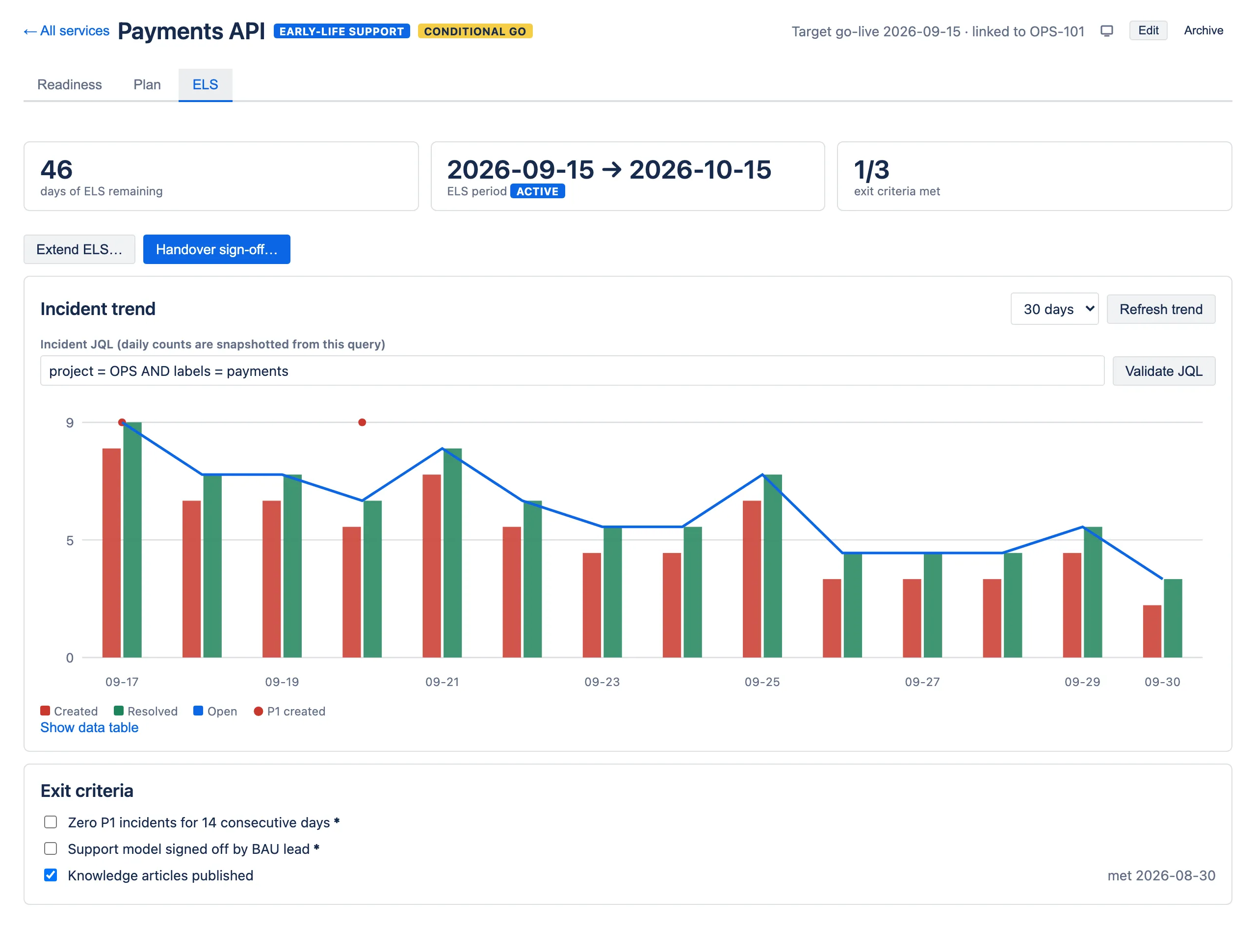
Three tiles across the top: days remaining, the period with its status, and how many exit criteria are met.
The incident trend
The chart plots four daily numbers derived from one JQL query:
| Series | Meaning |
|---|---|
| Created (red bars) | Incidents raised that day. |
| Resolved (green bars) | Incidents resolved that day. |
| Open (blue line) | Still open at the end of that day. |
| P1 created (red dots) | Highest-priority incidents raised that day. |
The shape you want is red bars shrinking and the blue line trending down. Red bars consistently taller than green means the backlog is growing — the service is not ready to leave ELS however many days have elapsed.
Setting the JQL
Enter a query that matches this service’s incidents, for example:
project = OPS AND "Affected Service" = "Payments API" AND type = IncidentClick Validate JQL to check it parses and to see how many issues it matches right now. A Save JQL button appears beneath the field once you change it; on the create form the query is saved by Start ELS instead.
The app wraps your query in parentheses and adds its own date bounds, so OR
clauses cannot escape the day being counted.
Where the numbers come from
A scheduled job runs once a day and records that day’s counts. It runs as the app rather than as any individual, so the daily rows do not depend on one person’s Jira permissions.
Because it is daily, a brand-new ELS period shows “No snapshots yet” until the job first runs.
Refreshing by hand
Refresh trend backfills immediately: it recomputes today and fills any gaps across the window currently selected in the dropdown. So set the selector to 60 days before refreshing if you want the maximum backfill — the default is 30, and 60 is the hard ceiling.
It never reaches back before the ELS start date, so a 60-day refresh on a ten-day-old period fills ten days, not sixty.
Two things to know:
- The button is disabled until an incident JQL has been saved.
- Refresh runs as you, not as the app. Rows you backfill reflect what you can see in Jira, so they can disagree with the app-authored rows either side of them if your permissions differ.
If the daily job fails — usually a JQL that has stopped being valid because a field was renamed — the tab shows a banner naming the error. Fix the query and the banner clears on the next successful refresh.
Choosing the window
The 14 / 30 / 60 days selector changes how much history the chart shows, and it is also the range Refresh trend backfills. Snapshots already recorded are kept for 400 days regardless of the selection.
Reading the numbers as text
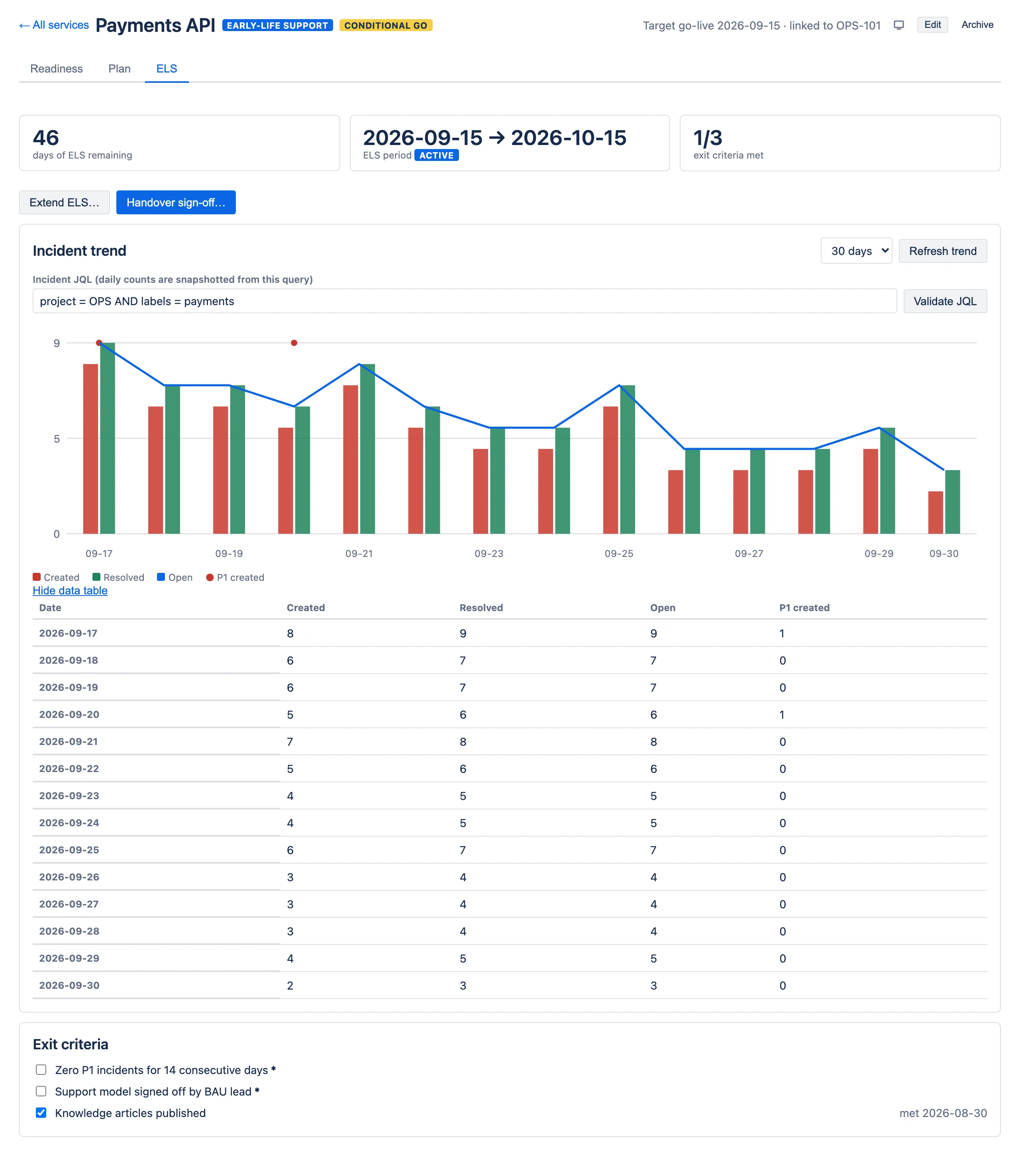
Click Show data table under the chart for the same figures as a table — one row per day with created, resolved, open and P1 counts. Useful for copying into a report, and it is how the chart is read by screen readers.
Exit criteria
Tick a criterion when it is met; the app records who ticked it and when. Untick it if that turns out to be premature.
Criteria marked * are mandatory and must be met before handover sign-off —
or sign-off requires an explicit override with a reason. Anything you created
through the start form is mandatory.
Extending ELS
Click Extend ELS…, choose a new end date and give a reason. Both are required — the confirm button stays disabled until the date actually differs from the current one and a reason is entered. The reason is kept on the record.
Unlike the start form, the extend dialog does not stop you picking a date before the ELS start; that is only refused when you submit.
Extending sets the period’s status to extended, which you will see on the middle tile, and adds an entry to an Extensions card listing each extension with its reason. Extensions are audited individually, so “we extended twice for the same unresolved problem” stays visible rather than folding into one date.
Handover sign-off
Click Handover sign-off… when the service is genuinely ready to become business as usual.
If every mandatory exit criterion is met, add any Notes and click Sign off handover. The service moves to Live and the ELS period closes.
If mandatory criteria are outstanding
The dialog says which ones, and sign-off is blocked until you tick Override and sign off anyway. Ticking it relabels the same Notes box to Notes (override reason — required) — there is one field, not two — and it must be filled in. What you write is stored on the sign-off record.
That combination is intentional. Real handovers sometimes happen with something outstanding, and a tool that forbids it just gets bypassed — so the app allows it but makes it a deliberate, attributed act rather than a quiet one.
Sign-off is one-way
Once signed off, the period is closed: the exit criteria checkboxes are disabled, and a second attempt is refused with “ELS has already been signed off”. There is no reopen.
What is recorded
Your name, the timestamp, the notes, and whether it was an override with the reason. Like gate decisions, this is a permanent record.
When the licence is inactive
Every control on this tab is disabled — Start ELS, Refresh trend, the exit-criteria checkboxes, Extend ELS… and Handover sign-off…. The daily snapshot job also stops running, so the trend gains no new rows until the licence is restored.