Who this is for: transition leads, and whoever chairs your go/no-go forum.
Open a service and stay on the Readiness tab — it is the default.
Starting an assessment
If the service has no assessment yet, you are offered a template picker. Choose one and click Start assessment.
Two things happen:
- The service moves from Planning to In transition.
- The assessment pins the template version it started with. Later edits to that template create a new version and leave this assessment alone.
You cannot start an assessment if no template exists — see 01 · Admin setup.
A service has one assessment. Once started, there is no button to start a second one, so a service cannot be re-assessed against a newer template version in this release. Pick the template deliberately.
Scoring
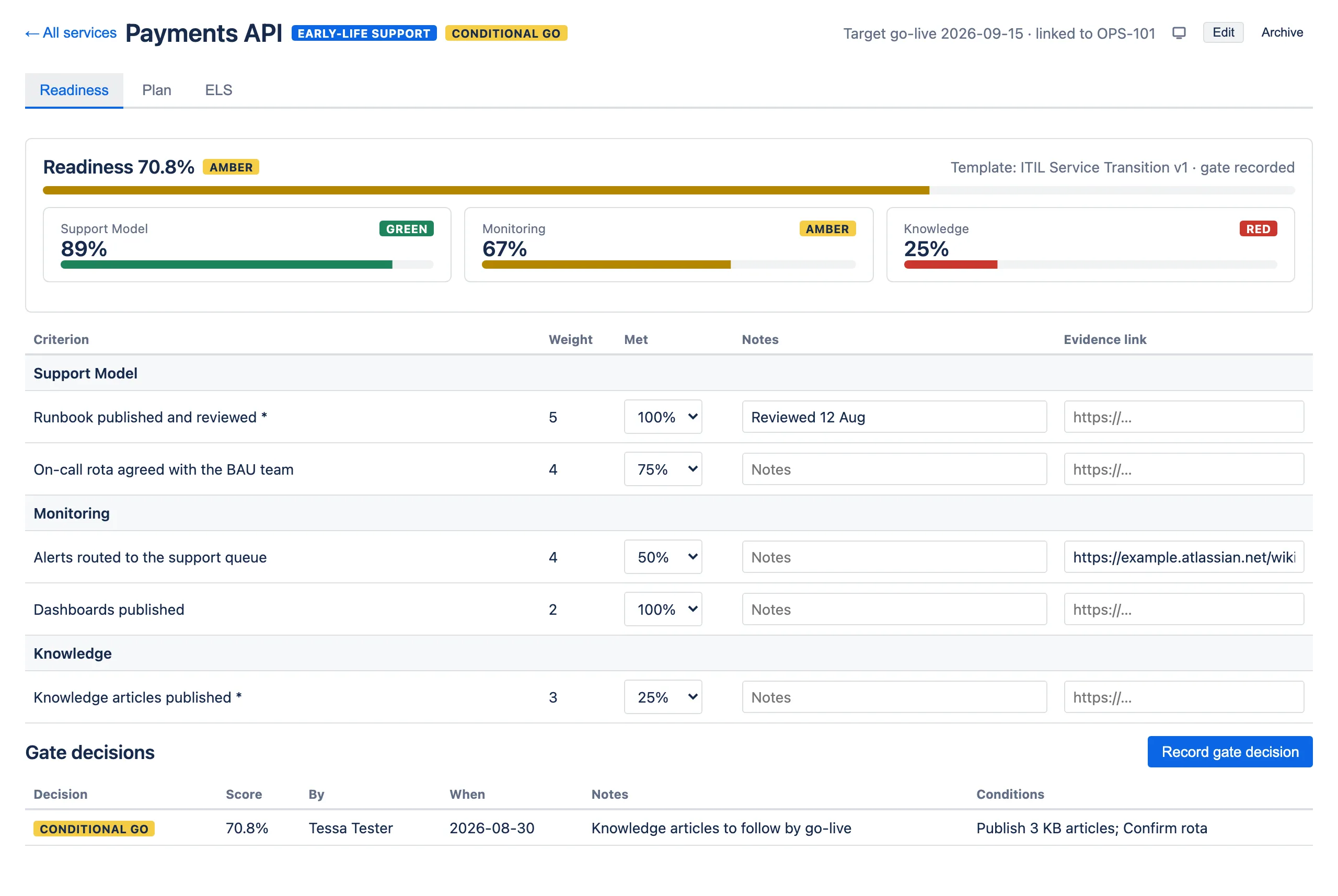
The header shows the overall weighted score, its RAG band and a bar. Below it, one tile per category with that category’s own score and band — useful for seeing where a service is weak, not just how weak.
The table lists every criterion, grouped by category:
| Column | What to do with it |
|---|---|
| Criterion | The question. A * marks it mandatory. |
| Weight | Set by the template. Read-only here. |
| Met | Choose 0%, 25%, 50%, 75% or 100%. |
| Notes | Free text, up to 2000 characters. |
| Evidence link | A URL to the runbook, dashboard, rota or ticket that proves it. |
How saving works
This differs by field, and it matters:
- Met saves the moment you change the dropdown.
- Notes and Evidence link save when you leave the field — click or tab away.
A saving… indicator appears beside the score while a save is in flight, and the score and category tiles update as soon as it lands.
There is no save button, and no warning if you close the tab. Tab out of a notes field before navigating away, or what you typed is lost.
The evidence link is stored as plain text. It is not validated as a URL and is not rendered as a clickable link.
Choosing a percentage honestly
The five steps exist to stop the score becoming a negotiation:
- 0% — not started.
- 25% — started, nothing usable yet.
- 50% — half there; a reader would find real gaps.
- 75% — essentially done, with a known caveat.
- 100% — done, and you could show someone.
If a criterion is 100% but you would not want it inspected, it is 75%.
Remember that anything you have not scored counts as 0%, not as “not yet assessed” — a fresh assessment reads 0% and climbs as you work through it.
Mandatory criteria and evidence
A criterion marked mandatory shows *. One marked evidence required shows
Evidence required in red until a link is supplied.
Neither blocks a gate decision. The app does not stop you deciding — it makes sure the gaps are visible to the person deciding. That is a deliberate choice: the decision is a human one, and a tool that refuses to record a No-Go because a checkbox is empty is a tool people work around.
If two people edit at once
The assessment uses optimistic concurrency. If someone else saves while you have the page open, your next save is rejected with:
Someone else updated this assessment. Reload the page to pick up their changes.
Reload and re-apply your change. Nothing you saved earlier is lost — only the conflicting save is refused.
Recording a gate decision
When the assessment reflects reality, click Record gate decision. (The button is disabled until an assessment exists.)
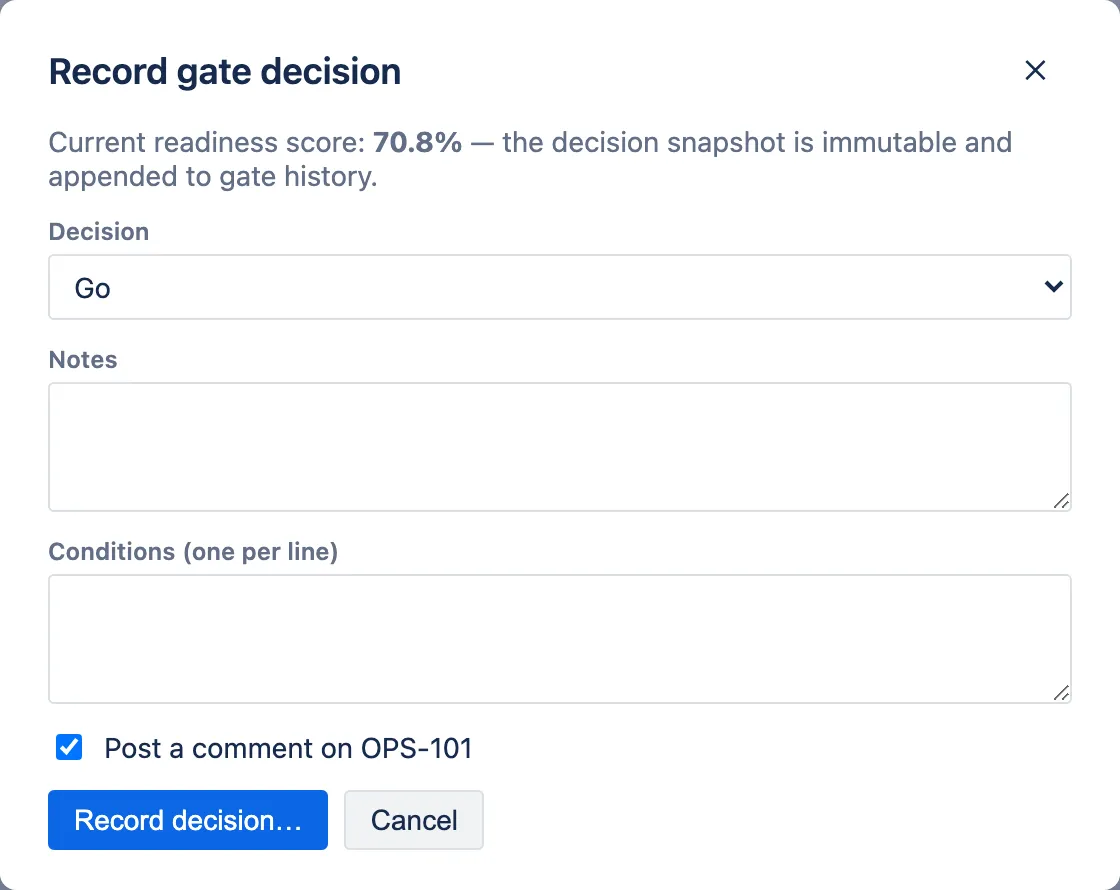
| Field | Notes |
|---|---|
| Decision | Go, Conditional Go or No-Go. |
| Notes | Why. Up to 2000 characters. This is the sentence people will read in six months. |
| Conditions | One per line, up to 20. Shown for Go and Conditional Go; the field disappears entirely if you select No-Go. |
Post a comment on KEY | Appears only when the service has a linked issue, and is ticked by default. Untick it if the ticket should not be updated. |
The button asks twice — Record decision… then a red Confirm — because the result cannot be edited afterwards.
What the Jira comment contains
The service name, the decision, the readiness score, and your Notes.
Conditions are not included. If a condition needs to be visible on the ticket, repeat it in Notes.
If you do not have permission to comment on the linked issue, the comment silently fails — the gate decision is still recorded and the app reports success. Check the ticket if the comment matters.
What gets captured
The decision stores the score at the moment it was made, along with your name and the timestamp. Later scoring does not retroactively change what the decision was made on.
Gate decisions are immutable
There is no edit and no delete. To change a decision, record a new one; the history keeps both, newest first.
This is the app’s audit trail, and it is the reason the whole feature is worth having. A gate history that can be quietly rewritten is not evidence of anything.
Choosing between the three
- Go — proceed. No outstanding conditions.
- Conditional Go — proceed, but named things must be true by go-live. List them in Conditions; they appear in the gate history.
- No-Go — do not proceed. Record what would change your mind in Notes; the Conditions field is not available for a No-Go.
A No-Go is not a failure state in the app. The service stays where it is, the assessment stays editable, and you record a new decision when the picture changes.
Note that a gate decision does not change the service status — it records what was decided. What it does unlock is early-life support, which requires a Go or Conditional Go before it can be started.
Reading the history
The Gate decisions table below the assessment lists every decision made for this service: the decision, the score it was made on, who made it, when, the notes and any conditions.
The most recent decision is what shows on the service header, in the hub list and in the portfolio. The table lists up to the 200 most recent decisions.
Recording a decision also marks the assessment complete, which is the ”· gate recorded” note beside the template name. The assessment stays editable.
When the licence is inactive
The whole tab goes read-only: every Met dropdown, notes field and evidence field is disabled, and both Start assessment and Record gate decision are greyed out. Scores, categories and the full gate history all remain visible.