
Guide 04
Transition plans
Building a transition plan from phases and tasks, assigning owners, linking Jira issues and reading plan health.
Who this is for: transition leads, and anyone who owns a transition task.
Open a service and choose the Plan tab.
Creating the plan
If there is no plan yet, click Create plan. It is seeded with the default phases your administrator configured — out of the box:
Knowledge Transfer · Support Model Setup · Monitoring Onboarding · Training · Go-Live PrepYou can rename, add and remove phases afterwards, so the defaults are a starting point rather than a commitment. Creating a plan does not change the service status.
The plan at a glance
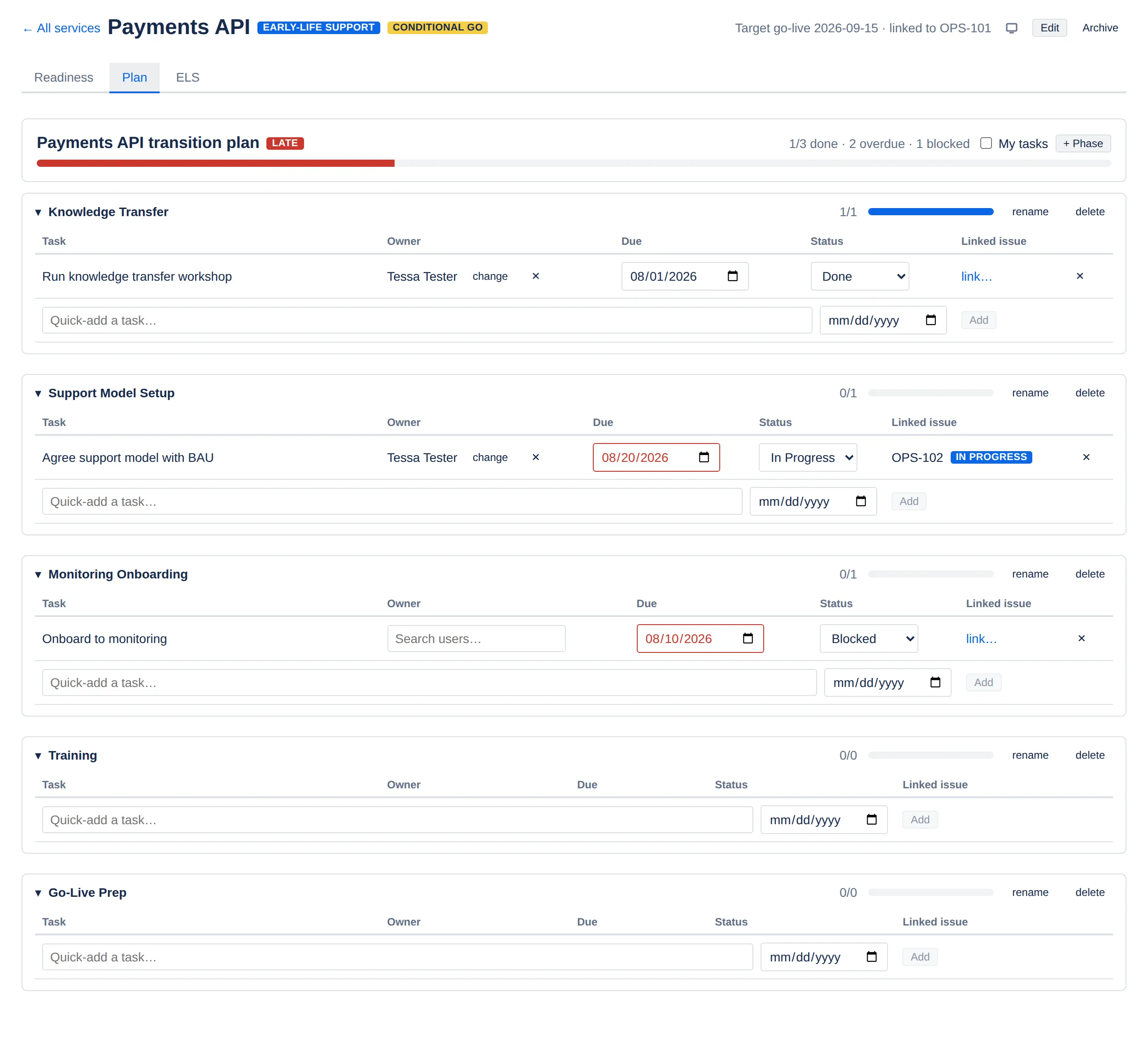
The header shows the plan name, its health, a progress bar, and a summary: 1/3 done · 2 overdue · 1 blocked.
Each phase is a collapsible section showing its own done-count and progress. Click the phase name to collapse or expand it.
Plan health is derived
You never set it. The checks run in this order, and the first match wins:
| Health | When |
|---|---|
| Done | The plan has at least one task and every task is done. |
| Late | Any task is overdue, or the service’s target go-live has passed with work still open. |
| At risk | Any task is blocked. |
| On track | None of the above — including a plan with phases but no tasks. |
Because Late is checked before At risk, an overdue task outranks a blocked one: a plan with both reads Late, since the date has already slipped.
Health is recalculated whenever the plan or one of its tasks is saved, and when you change the service’s target go-live date. A daily background pass also brings it up to date, so a task or a target date that passed overnight turns the plan Late without anybody touching it. That pass covers up to 100 services a day and carries on the next day where it stopped, so on a very large site it can be a few days behind.
Plan health also appears on the service row in the hub and the portfolio.
Tasks
Adding a task
Use the Quick-add a task… row at the bottom of any phase. Type a title,
optionally set a due date, then press Enter in the title box or click Add.
That is the whole flow — no dialog. Owners, statuses and links are set on the row afterwards.
Editing a task
| Column | Editable? | Notes |
|---|---|---|
| Task | No | The title is fixed once added. To reword it, delete the task and add it again. |
| Owner | Yes | Search Jira users. change replaces the owner, ✕ clears it. |
| Due | Yes | Turns red once it passes while the task is not done. |
| Status | Yes | To Do, In Progress, Blocked, Done. |
| Linked issue | Once | Click link… and type a key. See below. |
The editable fields save as you change them, and the plan header updates with them.
Linking a Jira issue
Click link…, type the key, press Enter. The row then shows the issue key
with its live Jira status beside it, so you can see whether the underlying
work has moved without leaving the plan.
If the key does not exist, or you cannot see that issue, the key is refused when you link it. A key of the wrong shape is rejected with “Linked issue key must be a Jira issue key like OPS-123”.
If Jira cannot find the issue — it was deleted, or you cannot see it — the row says not found in red beside the key rather than leaving a bare key.
To change or clear a link, click the ✕ beside the issue key, then link a different one.
Deleting a task
Click the ✕ at the end of the row and confirm. Task deletion is permanent — there is no history to recover it from.
Phases
Adding a phase
Click + Phase in the plan header and give it a name.
Renaming a phase
Click rename on the phase and edit the name.
Deleting a phase
Click delete on the phase.
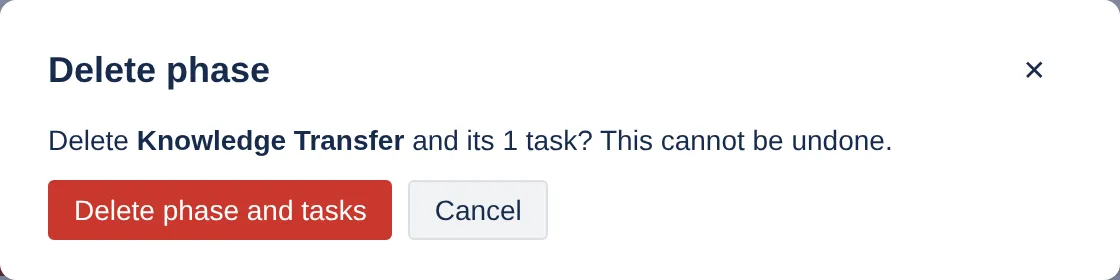
Deleting a phase deletes every task in it. When the phase has tasks, the confirmation names the exact number that will go with it and the button reads Delete phase and tasks; for an empty phase it just confirms the name. This cannot be undone.
That count ignores the My tasks filter — it always tells you the real total, not just the ones you can see.
The delete control is disabled on the last remaining phase — a plan needs somewhere to put a task.
If you want to keep the tasks, delete them individually first so you can see what you are losing. There is no way to move a task between phases.
Filtering to your own work
Tick My tasks in the plan header to hide every task you do not own.
The plan header counts, the plan progress bar and plan health continue to reflect the whole plan. The per-phase done-count and progress bar show only the filtered tasks, so a phase can read 0/0 while still holding other people’s work.
For work across several services, use My tasks on the hub instead — see 02 · Services.
Two people editing at once
If someone else changes a task while you have it open, your save is refused, a banner appears at the top of the plan, and the plan reloads:
This task changed under you — the list has been refreshed.
Only your one edit was lost. Re-apply it on the refreshed row.