
Guide 01
Admin setup
Creating readiness templates; setting the RAG thresholds, default ELS length and default plan phases; and publishing service status to Jira.
Who this is for: Jira site administrators. Do this first. Nobody can start a readiness assessment until at least one template exists.
Open Jira Settings → Apps → Service Transition & Readiness. The page has two tabs: Templates and Settings.
If you are not a Jira administrator you can still open this page, but everything is read-only and a banner says so. The same is true for everyone if the app licence is inactive.
Readiness templates
A template is the checklist a service is judged against: categories, and within each category the criteria and their weights.
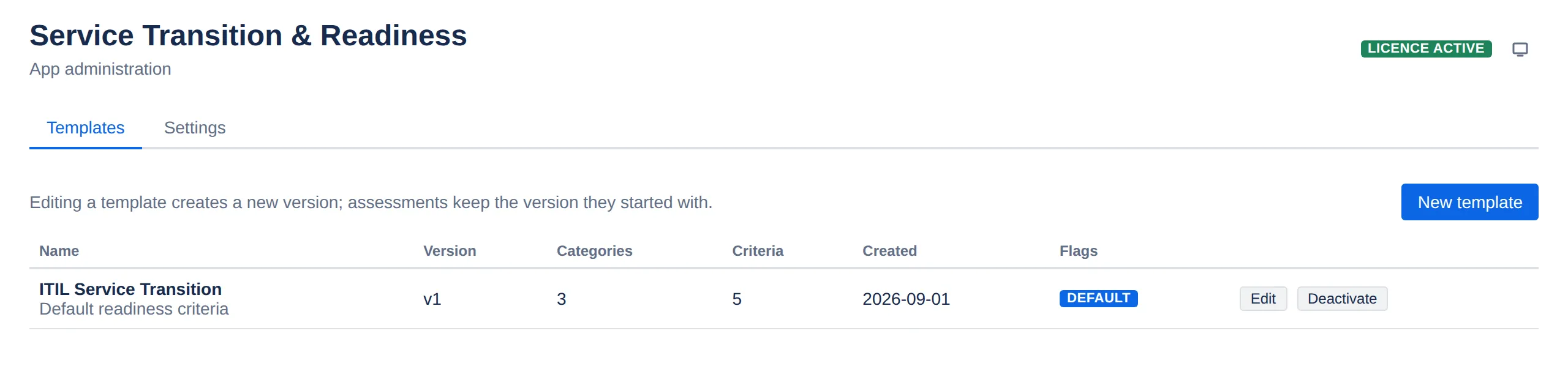
Each row shows the template’s version, its category and criterion counts, when it was created, and a lozenge when it is the default (the one pre-selected when someone starts an assessment) or when it has been deactivated. An active template carries no lozenge. Inactive templates are hidden from the picker but keep working for assessments already using them.
Creating a template
- Click New template.
- Give it a name, and optionally a description. The save button stays disabled until the name is filled in.
- Edit the starter set. A new template is not blank — it opens pre-populated with five categories and eleven weighted criteria as a starting point. Delete what does not apply, reword what does, and adjust the weights.
- Add anything missing with + Category and + Criterion.
- Click Create template.
Your real first task is pruning, not building. The starter set is a prompt, not a recommendation.
For each criterion you set:
| Field | Meaning |
|---|---|
| Criterion | The question being asked. Write it so “100%” is unambiguous. |
| Weight | 1–10. How much this criterion moves the overall score. |
| Evidence required | Shows a red Evidence required note on the criterion until a link is entered. It does not block scoring or a gate decision. |
| Mandatory | Marks the criterion with * in the assessment. It does not block a gate decision — it makes an omission visible to whoever decides. |
Use the ↑ and ↓ buttons to order categories and criteria. Order is
presentation only; it does not affect the score.
Two rules trim the template when you save:
- A criterion with no text is dropped. Its weight and checkboxes are ignored.
- A category with no name is dropped, along with anything inside it.
The second one would lose work, so the app refuses the save instead: if an unnamed category still holds criteria you have written, the name field is marked and a banner tells you how many criteria are at stake. Name the category and save again — nothing you typed is lost in the meantime.
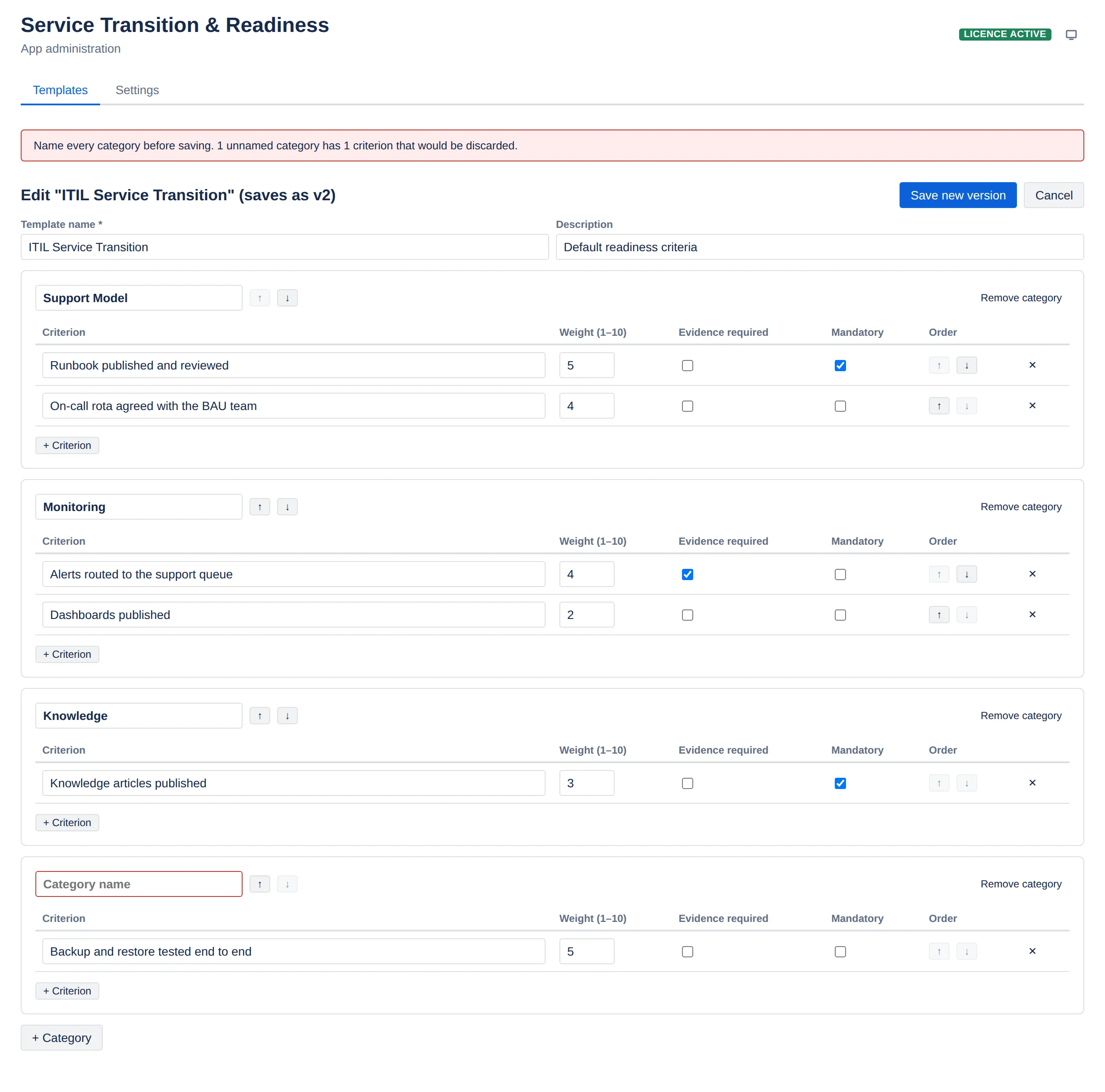
An unnamed category that is genuinely empty is dropped quietly, which is what you want after pruning the starter set.
Removing a category deliberately does prompt you, naming how many criteria go with it. Removing a criterion that has text prompts too; an empty row goes without ceremony.
Limits: a template needs at least one category and at least one criterion, and allows at most 20 categories and 200 criteria. Weights must be 1–10.
The editor does not enforce any of these as you type — the save fails with a validation message instead. A cleared weight box reads as 0 and is rejected on save, and the two limits you are most likely to hit are the minimums, after pruning the starter set too hard.
How weights turn into a score
Each criterion is scored in five steps — 0%, 25%, 50%, 75%, 100% — and the overall readiness score is the weighted average across all of them.
A worked example. Suppose a template has three criteria:
| Criterion | Weight | Scored |
|---|---|---|
| Runbook published | 5 | 100% |
| On-call rota agreed | 4 | 75% |
| Knowledge articles published | 3 | 25% |
The score is (5×100 + 4×75 + 3×25) ÷ (5+4+3) = 875 ÷ 12 = 72.9%.
Category scores use the same formula within each category. The overall score is not an average of the category scores — a category with one criterion does not count as much as one with ten.
An unscored criterion counts as 0%, not as “not applicable”. This is the single most important consequence of template design: every criterion you add drags an in-progress assessment down until someone scores it. A 40-criterion template will sit red for weeks.
The other practical consequence: weight is how you express what actually matters. Three weight-1 criteria will not outvote one weight-5 criterion.
Editing a template — versioning
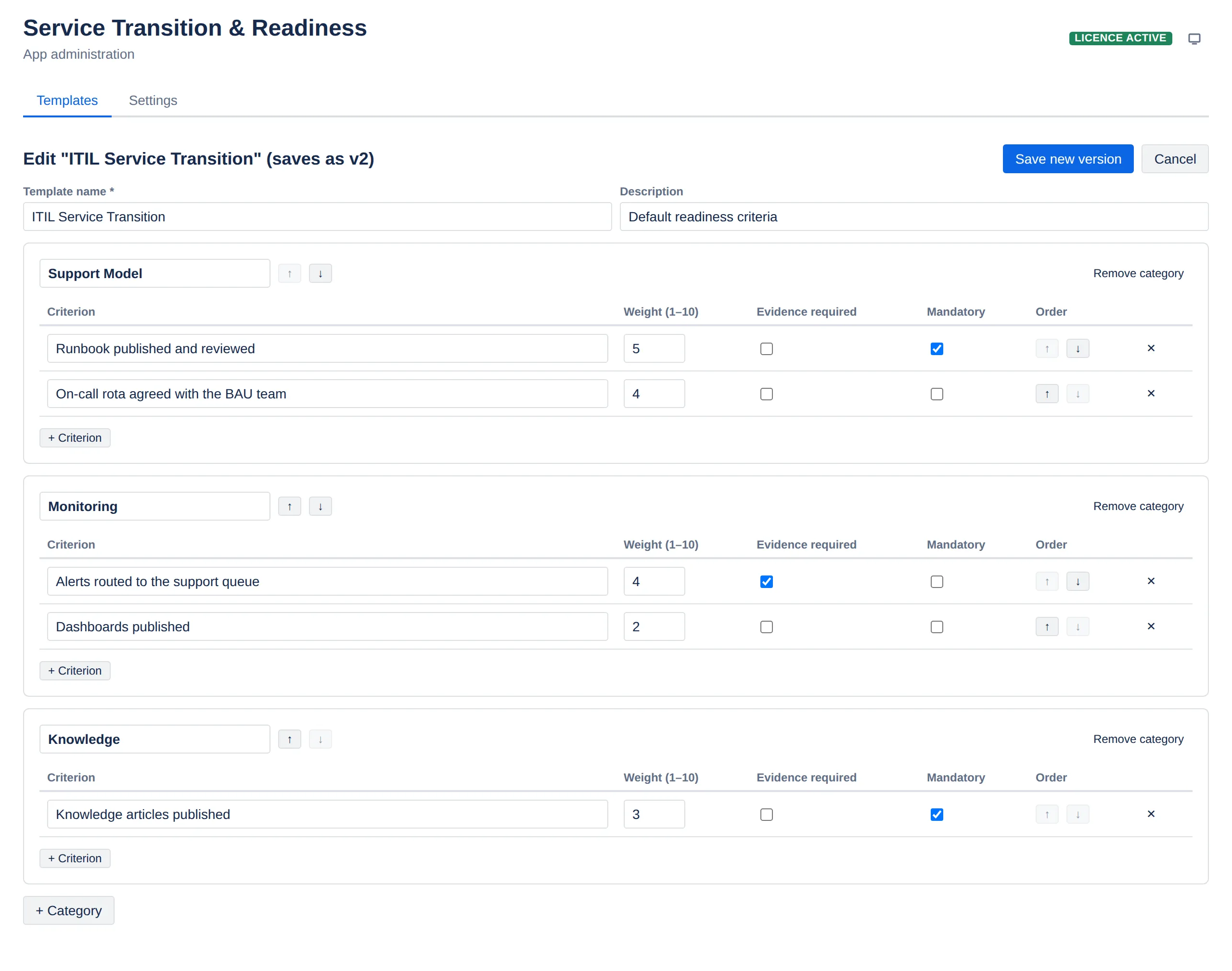
Saving an existing template creates a new version rather than overwriting the old one, which is why the editor’s heading reads saves as v2 and its button reads Save new version. The previous version is retained and marked not-latest.
This matters because assessments pin the version they started with. A gate decision recorded at 72.9% against v1 still means 72.9% against v1, even after you publish v2 with different weights. In-flight assessments are never disturbed by a template edit.
Default and active
-
Set default — pre-selects this template when someone starts an assessment. Setting a new default clears the flag from the previous one, so there is never more than one. Until someone sets it there are none. There is no way to clear the flag outright: the button is hidden on the template that already holds it, so a default can only be moved.
Deactivating the default does not clear its default flag. You end up with a default nobody can pick, and the assessment picker quietly pre-selects the first active template instead. Move the default to an active template before retiring the old one.
-
Deactivate / Activate — a toggle. Deactivating hides the template from the picker without affecting assessments already using it; activating brings it back. Use it to retire a template.
Settings
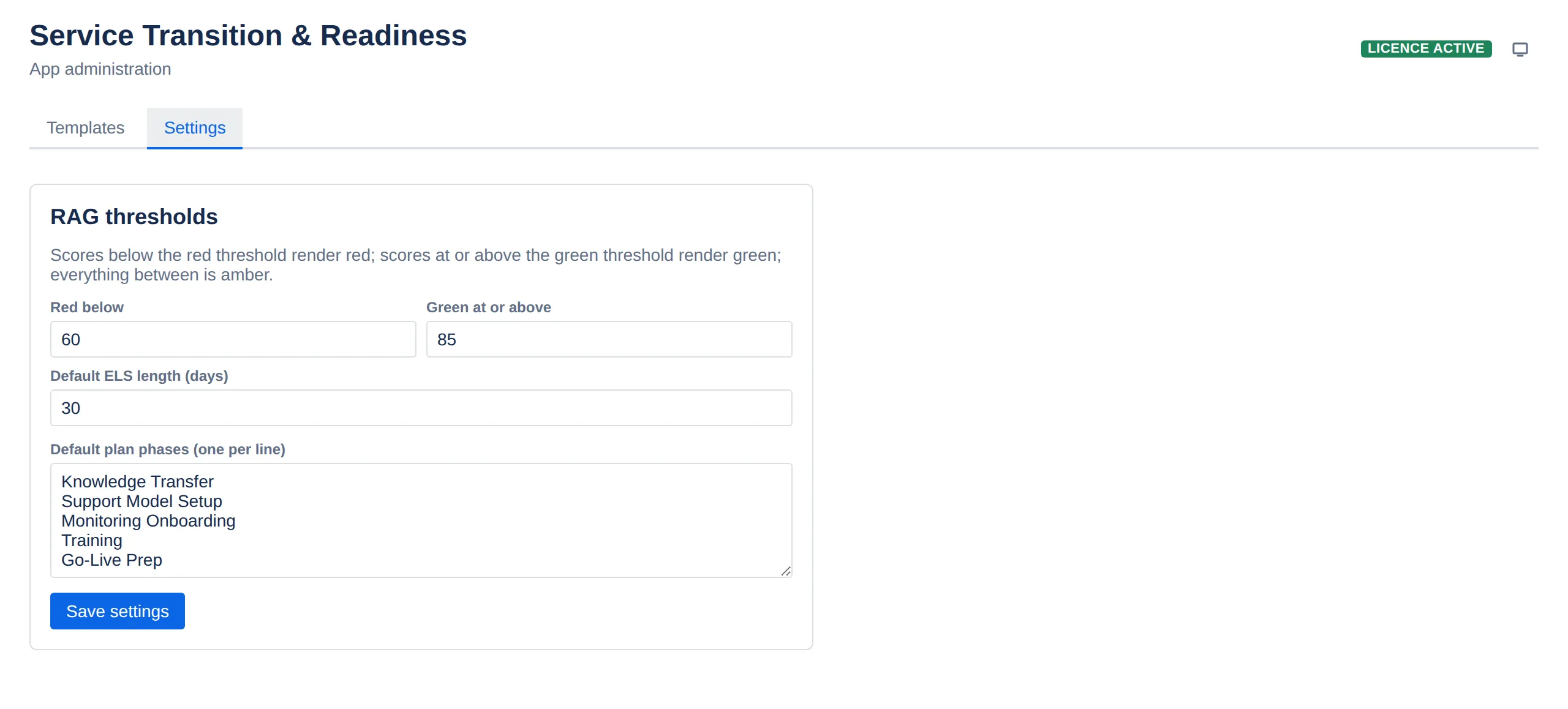
RAG thresholds
Two numbers that turn a readiness percentage into a colour:
- Red below — scores under this are red. Default 60.
- Green at or above — scores at or over this are green. Default 85.
- Everything between is amber.
Both must sit between 0 and 100, and red must be below green. The app blocks the save otherwise, because crossing them leaves no amber band at all — every score would come out red or green.
Changing these re-colours every existing score immediately. It does not change any score, and it does not change any gate decision that was already recorded — those keep the score they were made on.
Default ELS length (days)
How long an early-life support period runs by default, 1–365. Default 30. This only pre-fills the end date when someone starts ELS; they can change it.
Default plan phases
The phases a new transition plan starts with, one per line. The shipped default:
Knowledge Transfer
Support Model Setup
Monitoring Onboarding
Training
Go-Live Prep
Between 1 and 20 phases — emptying the box entirely makes the save fail. Changing this affects new plans only; existing plans keep the phases they have, and a plan can grow past 20 phases because the limit applies here, not there.
Click Save settings. A “Saved.” confirmation appears beside the button.
Publishing status to Jira
The same Settings tab has a switch labelled Publish service status onto linked Jira issues. It is off until you turn it on.
With it on, each service that has a linked Jira issue writes a short status summary onto that issue. Jira indexes it, so anyone can search on it with JQL: in issue search, in filters and on dashboards, with no app page open. Use it when people want to ask questions like “which services go live this fortnight without a go decision?” from Jira itself.
Read this before you turn it on
- It applies to the whole site. There is no per-project switch. Turning it on publishes for every service in every project that has a linked issue.
- Anyone who can view the issue can read the summary, and so can other apps installed on your site. Jira gives no way to limit this.
- The summary is your Jira data, not app data. It lives on the issue in your own Jira, not in the app’s storage. Uninstalling the app does not remove it (see Turning it off, and uninstalling).
To turn it on, tick the box and click Save settings. Until you save, the page says Save settings to apply this change. The switch is read-only unless you are a Jira administrator and the licence is active.
Saving it on publishes the services you already have, up to fifty at once (the daily reconciliation run does the rest), and says what happened:
- how many services were published onto their linked issues;
- how many have no linked issue, so there is nothing to publish and no JQL search can find them;
- how many are linked to an issue Jira cannot find — deleted, or not visible to the app — naming the issue keys. Nothing can be published onto those and the reconciliation run cannot fix it: open the service and link a different issue, or clear the link. The service’s own page says the same;
- how many writes Jira refused for any other reason, which the reconciliation run retries.
What gets published
Each linked issue gets one Jira entity property, with the key
com.itsm-ltd.str.state. It holds these fields and nothing else:
| Field | JQL name | Values |
|---|---|---|
| Service status | strStatus | planning, in-transition, els, live, archived |
| Gate decision | strGate | none, go, conditional-go, no-go |
| Readiness score | strReadiness | A number, 0–100 |
| Plan health | strPlanHealth | on-track, at-risk, late, done. Left out if the service has no plan |
| Overdue tasks | strOverdueTasks | A count |
| Target go-live | strTargetGoLive | A date. Left out if none is set |
| Early-life support | strEls | active, extended, exited. Left out if ELS has not started |
The property also carries two fields you cannot search on: a format version number, and the time the service record last changed. The app uses that time to tell whether the copy on the issue is current.
There are no names, no account IDs, no free text (such as descriptions, conditions or comments) and no app record IDs.
The summary updates whenever the service changes. If Jira refuses a write, the change you made is still saved, and a daily reconciliation run corrects the issue afterwards.
Searching from Jira
Once publishing is on and saved, a Searching from Jira panel appears under the switch, listing the JQL names above and some queries to copy:
strGate != "go" AND strTargetGoLive <= 14d
strStatus = "els" AND strOverdueTasks > 0
strReadiness < 60 AND strStatus = "in-transition"
There is no search for “services I own”, and there cannot be. These names carry no account ids — that is the privacy decision the whole feature rests on — and Jira caches a search function’s answer for the entire site rather than for each person, so a personal search would show everybody the same list. Filter by owner in the portfolio instead, where the answer is worked out for whoever is looking.
A search only ever returns issues the person running it can already see.
Turning it off, and uninstalling
Turning the switch off stops new summaries being written. Untick the box and click Save settings. It does not take the existing summaries off the issues by itself — the daily reconciliation run does that, up to 200 services a run, so on a larger site it takes one day for every 200 services.
Remove published data does it now instead. The button appears under the switch once the switch is off and saved. Press it and it deletes the summaries the app wrote, telling you how many issues it cleared. A linked issue that had nothing on it to remove is counted separately, not as cleared. It works through the site in batches of fifty, so on a large site the count climbs as it goes; if Jira refuses any of them the button says so and pressing it again retries only those.
It is deliberately not offered while publishing is still on — there would be nothing to stop the app writing the summaries straight back.
Remove them before you uninstall. Forge gives an app no chance to act when it is uninstalled. After that, nothing can remove the summaries except you.
Relinking a service, or clearing its link, removes the summary from the issue it was linked to at that moment. This happens whether publishing is on or off. The daily run only ever looks at each service’s current link, so this is the app’s one chance at the old issue. If Jira refuses the removal, your change is still saved, but the old issue keeps its summary. To catch this, run the search in Removing a summary yourself. Any issue it finds that no service links to any more is one of these.
Cases you clear by hand:
- Anything left after uninstalling.
- Summaries left while the licence is inactive, if publishing was on when it lapsed. An inactive licence stops you changing the switch, and the Remove published data button only appears once the switch is off — so neither route is open to you. Nothing new is being published in that state: the app refuses every change and the daily reconciliation does not run. But what was already written stays until you remove it from the issues yourself, or until the licence is active again long enough to turn the switch off and press the button. The button itself does not need an active licence, because a lapsed licence is usually the step before uninstalling; it is only the switch in front of it that does.
- An old issue whose removal Jira refused when a service was relinked. Do not delete from an issue a service still links to while publishing is on, because the app will just write it back.
Removing a summary yourself
Summaries do not show in Jira’s issue view, so you remove them through the Jira REST API. You need Browse projects and Edit issues permission on the issue, and an Atlassian API token.
-
Turn publishing off first if a service still links to the issue and the app is still installed. Otherwise the app writes the summary back the next time the service changes, or at the next daily run. For an issue no service links to any more, you can skip this step.
-
Find the issues. Every summary carries a readiness score, so this search lists every issue that has one and that you can see:
strReadiness >= 0This search only works while the app is installed, because the app supplies the JQL names. After uninstalling, work from a list of the linked issues (the Linked JSM request on each service) that you made beforehand.
-
Delete the property from each issue:
curl -u you@example.com:YOUR_API_TOKEN -X DELETE \
  https://YOUR-SITE.atlassian.net/rest/api/3/issue/OPS-123/properties/com.itsm-ltd.str.state
A 204 response means it was removed. A 404 means that issue had no summary. It deletes only this app’s property and leaves the issue itself and any other properties alone.
What to set up first
For a first rollout:
- Open a new template and cut the starter set down to what your organisation actually judges readiness on. Resist making it exhaustive — remember every criterion counts as 0% until scored, so a 30-criterion template that nobody completes reads worse than a 12-criterion one that gets filled in.
- Set it as the default.
- Check the RAG thresholds match what your governance forum expects “green” to mean.
- Adjust the default phases to your transition process.